Table of Contents
Introduction
If you have ever looked at your iCloud settings and seen thousands of messages taking up almost no space, or if your "Sync Now" button does absolutely nothing, you are dealing with one of Apple’s most persistent cloud glitches.
After 32 days of testing, resetting, and even dealing with a countdown timer that went into negative numbers, I have mapped out exactly how to escape this loop. Here is the step-by-step guide to fixing iMessage in iCloud.
The Problem: Ghost Messages and Metadata Loops
The nightmare usually starts when you notice a massive discrepancy in your settings.
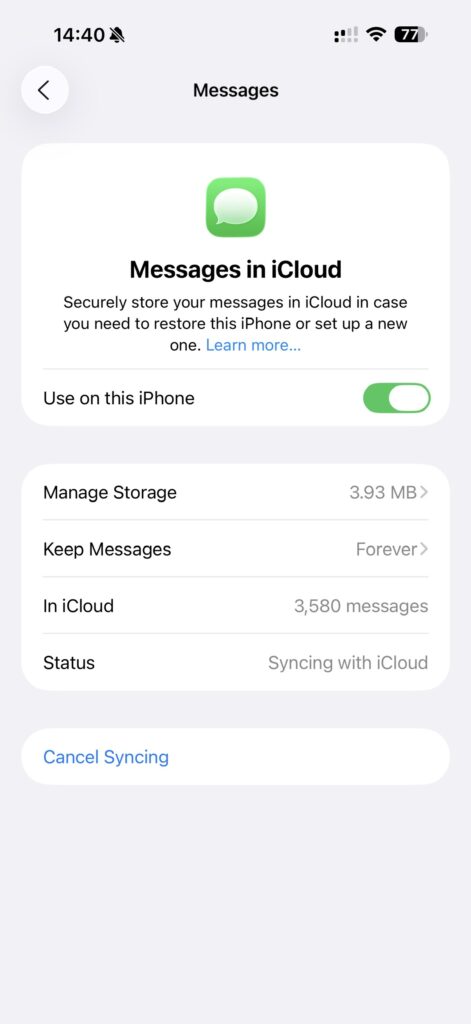
In my case, iCloud claimed there were 3,580 messages stored, but the total storage used was only 3.93 MB. This is what we call "Ghost Data." The cloud thinks there is a history to sync, but the actual content is missing or corrupted. This causes the "Syncing with iCloud" status to hang indefinitely because the system is trying to find files that don't exist.
The 30-Day "Disable and Delete" Strategy
The standard fix is to go to Settings > [Your Name] > iCloud > Show All > Messages and select "Disable and Delete." This starts a 30-day clock where Apple is supposed to purge your message data from the servers so you can start fresh.
However, the software is often bugged. During my wait, I encountered a bizarre glitch:
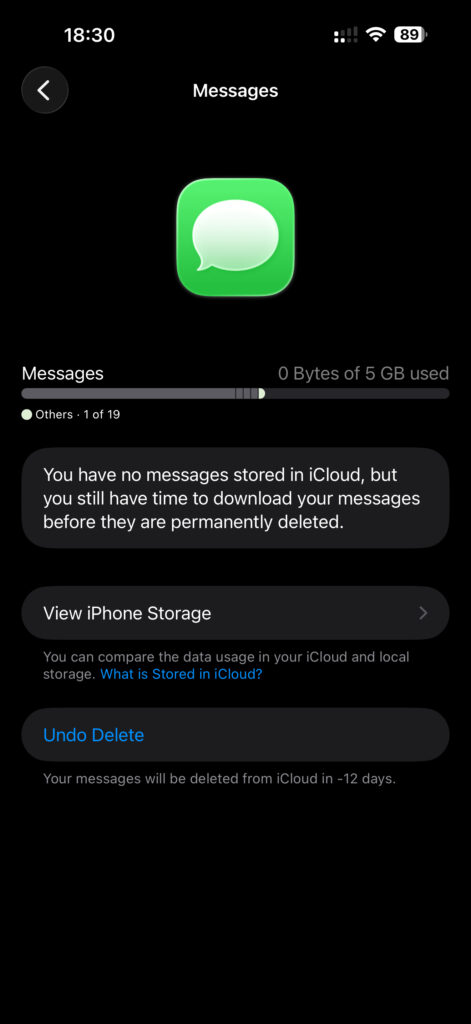
My phone reported that messages would be deleted in "-12 days." Even after the 30-day window passed, the "Undo Delete" button stayed there. If you see this, it means your device's local cache is out of sync with what is actually happening on Apple's servers.
Why the Mac is Often the Culprit
A major breakthrough in my troubleshooting was identifying the Mac as the "poison" in the sync chain.
When you enable iMessage on a Mac, it doesn't just download from the cloud; it tries to merge its massive local library (stored in ~/Library/Messages) with the cloud. If your Mac has a corrupted database, it will re-upload "ghost" counts to your iPhone and iPad. This is why you might see 200 messages on your phone, but the moment you turn on your Mac, that number jumps to 2,000+ and the sync pauses.
The "Nuclear" Solution: A Clean Start
If you are tired of waiting and the numbers still aren't right, the only guaranteed fix is a fresh start. Here is the order of operations I recommend:
- The Mac Deep Clean: If you don't want to reset your whole Mac, you must at least delete the iMessage library. Sign out of iMessage on the Mac, go to the Library folder, and move the "Messages" folder to the trash.
- Reset the iPhone and iPad: Erase all content and settings.
- Set Up as New: This is the most important step. Do NOT restore from an iCloud Backup. Backups often save the very "sync-state" bugs you are trying to delete.
- The Order of Enabling: * Sign into your Apple ID.
- Enable Messages in iCloud on your iPhone first.
- Wait for it to show a clean "0" or the correct small number of messages.
- Enable it on the iPad.
Only once the mobile devices are perfect should you sign back into the Mac.
Should You Just Wait?
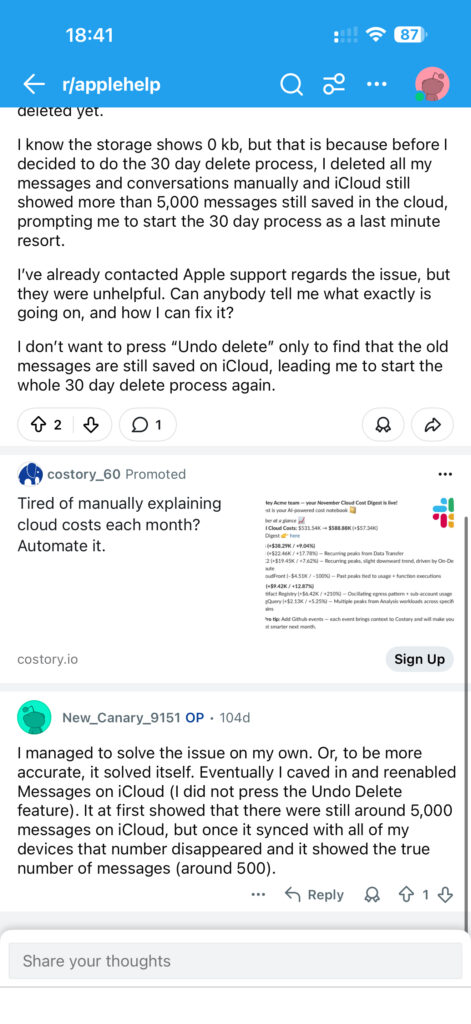
There is a light at the end of the tunnel. As seen in community discussions on Reddit, some users find that if they simply re-enable everything and leave the devices on chargers / Wi-Fi for 48 hours, the "Ghost" numbers eventually disappear on their own as the server performs a background reconciliation.
Final Verdict
If your deletion timer is in the negative days or your Mac is causing ghost messages to reappear:
- Don't keep hitting "Sync Now"—it won't help.
- Do clear your Mac's local message library.
- Do consider a "Reset as New" if the 30-day wait fails to clear the count.
Have you dealt with the -X days bug? Let me know in the comments how you finally got your messages to sync! If you found this article helpful please look through our other articles.
Other links / reference:
https://discussions.apple.com/thread/256198972?sortBy=rank
Deleting all messages in iCloud permanently in 30 days?
 byu/6thDAY inapplehelp
https://discussions.apple.com/thread/256252456?sortBy=rank
Help! Running out of storage: why is there such a discrepancy between my iMessage gigs on my phone storage vs iCloud?
 byu/stinamb iniCloud
iMessages in the cloud using an EGREGIOUS amount of storage
 byu/Feeling_String7372 inios
https://setapp.com/how-to/imessage-not-working-on-mac
Messages taking up 57GB of local storage with iCloud enabled
 byu/WayyyCleverer inMacOS
https://forums.macrumors.com/threads/messages-in-icloud-shows-millions-of-messages-in-the-cloud.2415838/